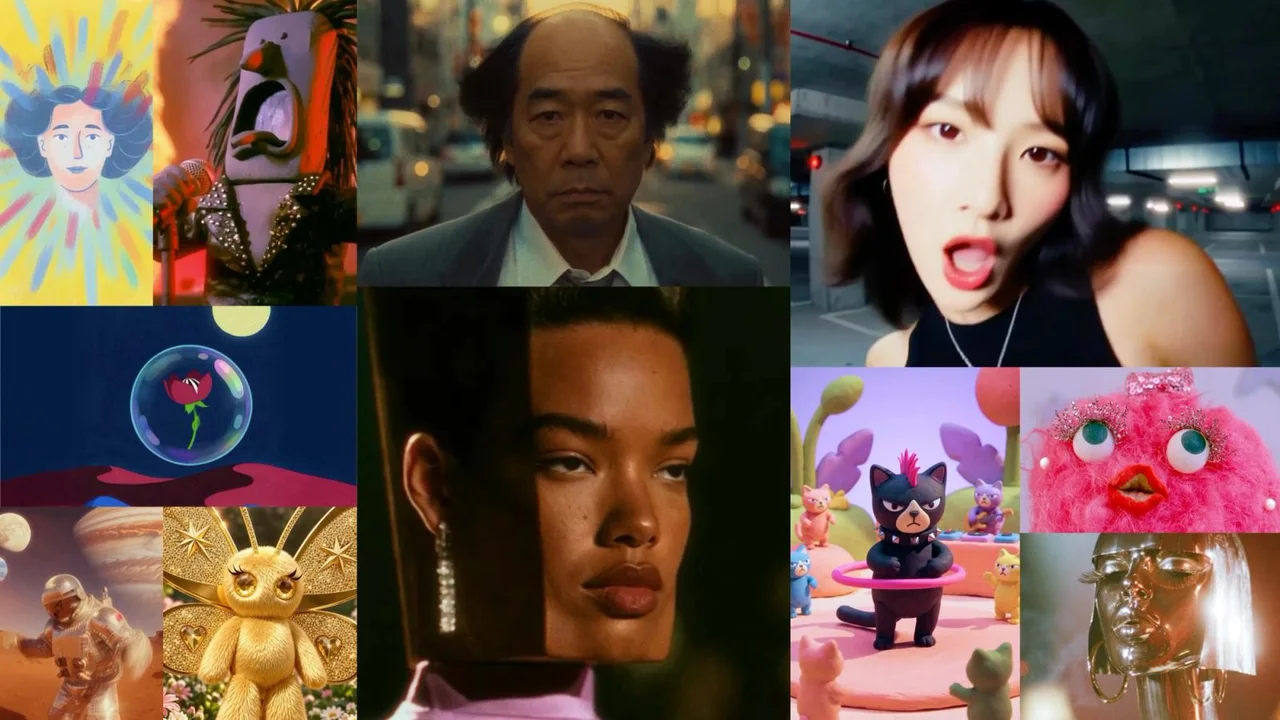
Suno launched Visuals on November 17, giving musicians a way to build a video around a track already in their library. Drag a song into the Visuals tab and choose a passage up to 15 seconds long. A reference image can supply the look of the scene, and Suno offers original characters for people starting without artwork. The feature launched on the web, iOS and Android. Suno’s announcement
Start with the lyric you want people to remember
A chorus gives the first clip a natural beginning and end. For a teaser, try picking a passage that includes the breath before the first word, then use one image of the singer to anchor the shot. Visuals can animate that image, lip-sync the character to the audio and put lyrics on screen. Playing the result at phone size is a quick way to tell whether the words cover the singer’s face.
Build a longer cut from the clips that work
The Visuals editor can extend a clip or join several into a Sequence. That leaves room to try a second shot for the verse while keeping the chorus take you like. Images, clips and Sequences live in the Visuals library, where they can be downloaded or reopened. Suno sells visual credits separately from song credits. Visuals editor guide · Visual credit pricing