
AI VIDEO, IMAGE & AUDIO
AI video generator. Ideas in motion.
Turn text and photos into videos. Create images and audio in the same workspace.
Find your next idea.
See a look you love? Open it, grab the prompt, and make it yours.
What do you want to create?
Create videos, images, and audio from your ideas.
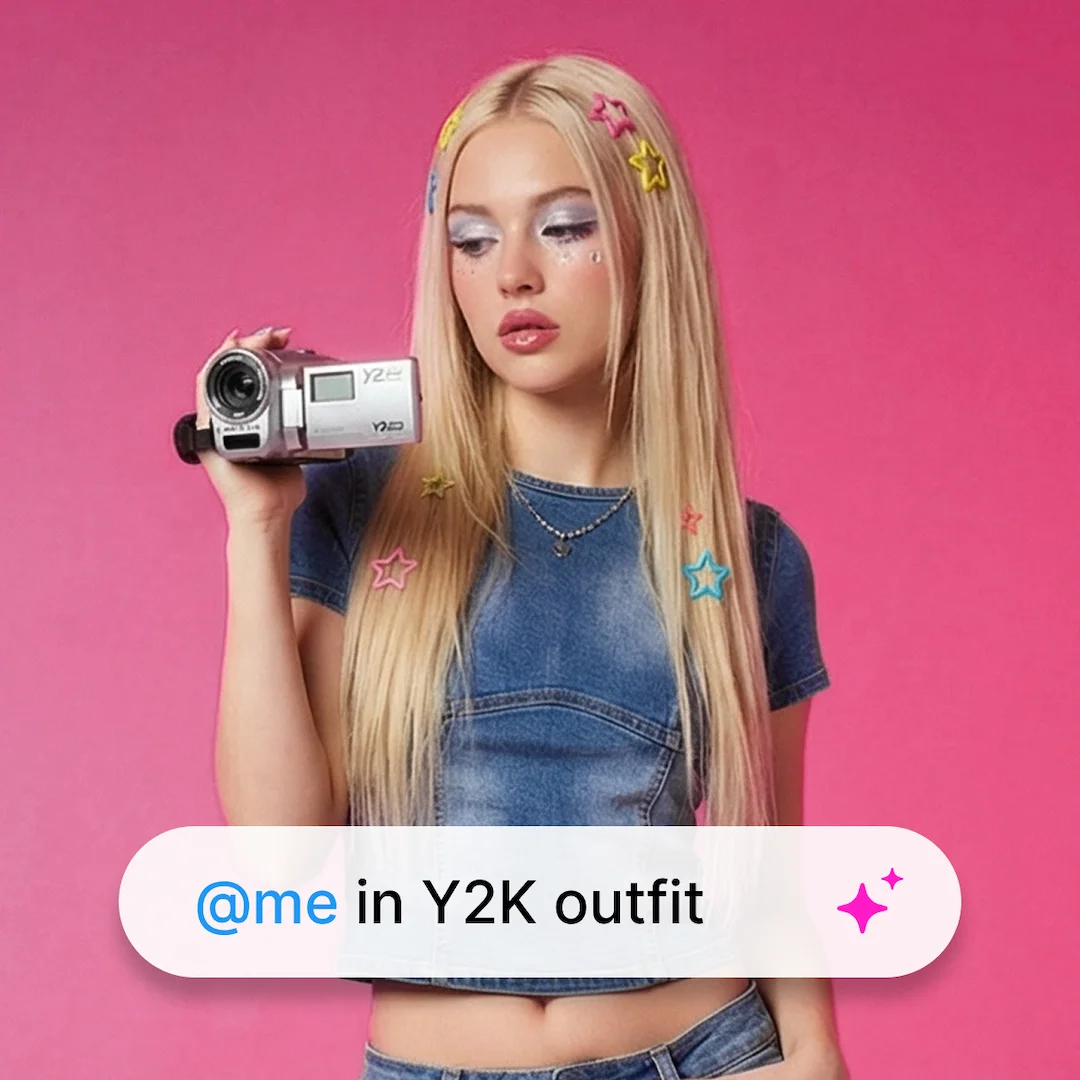
Create Video
Create from a prompt.
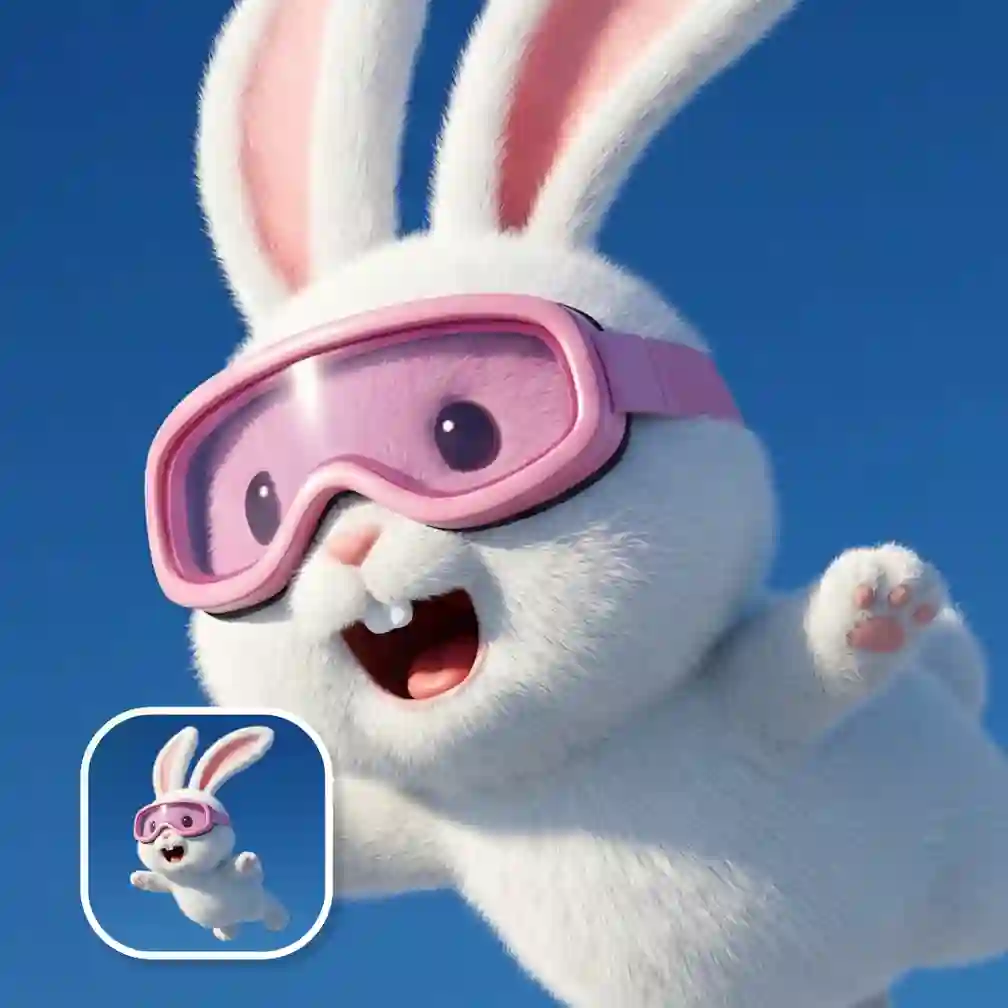
Frame to Video
Bring a frame to life.
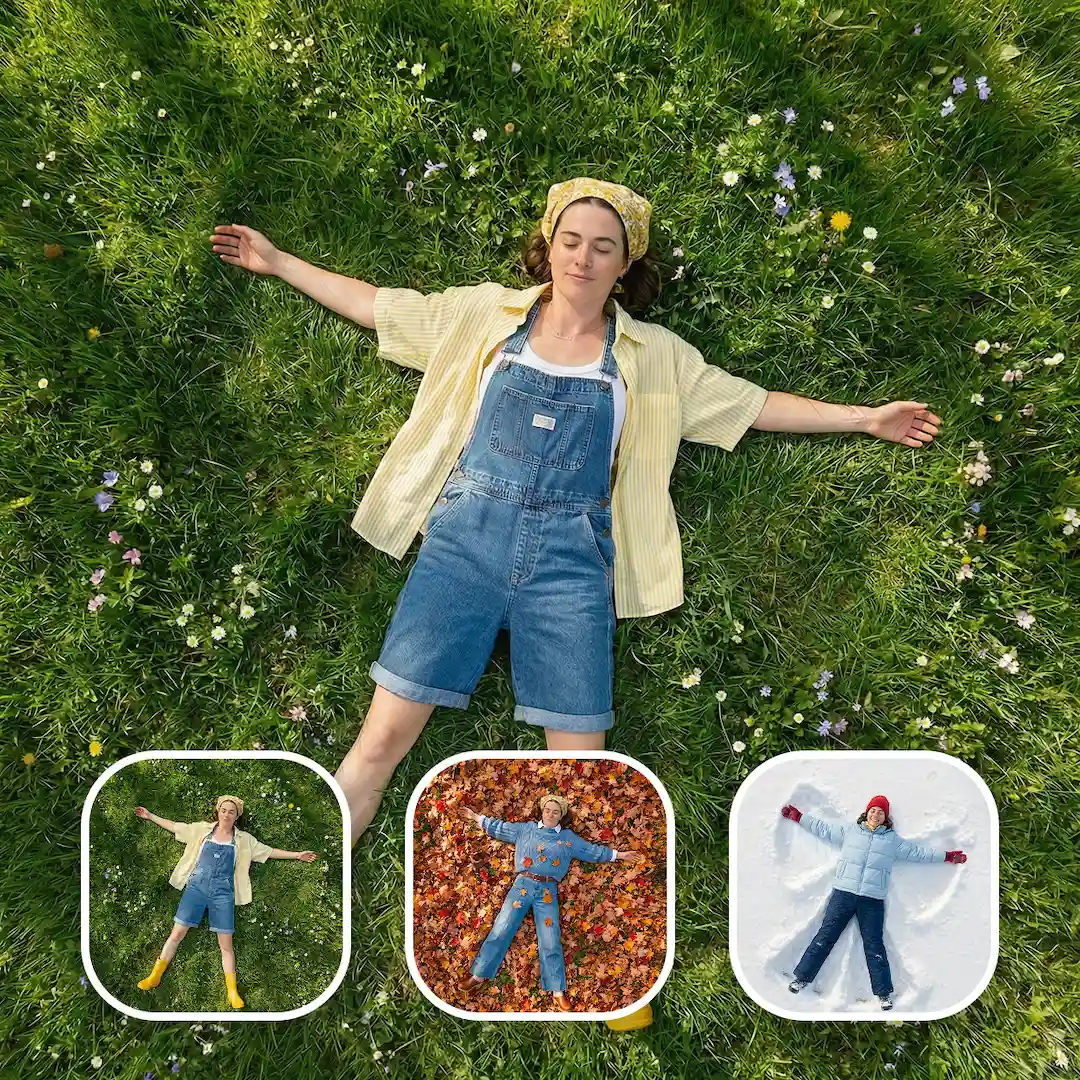
Edit Video
Give footage a new look.
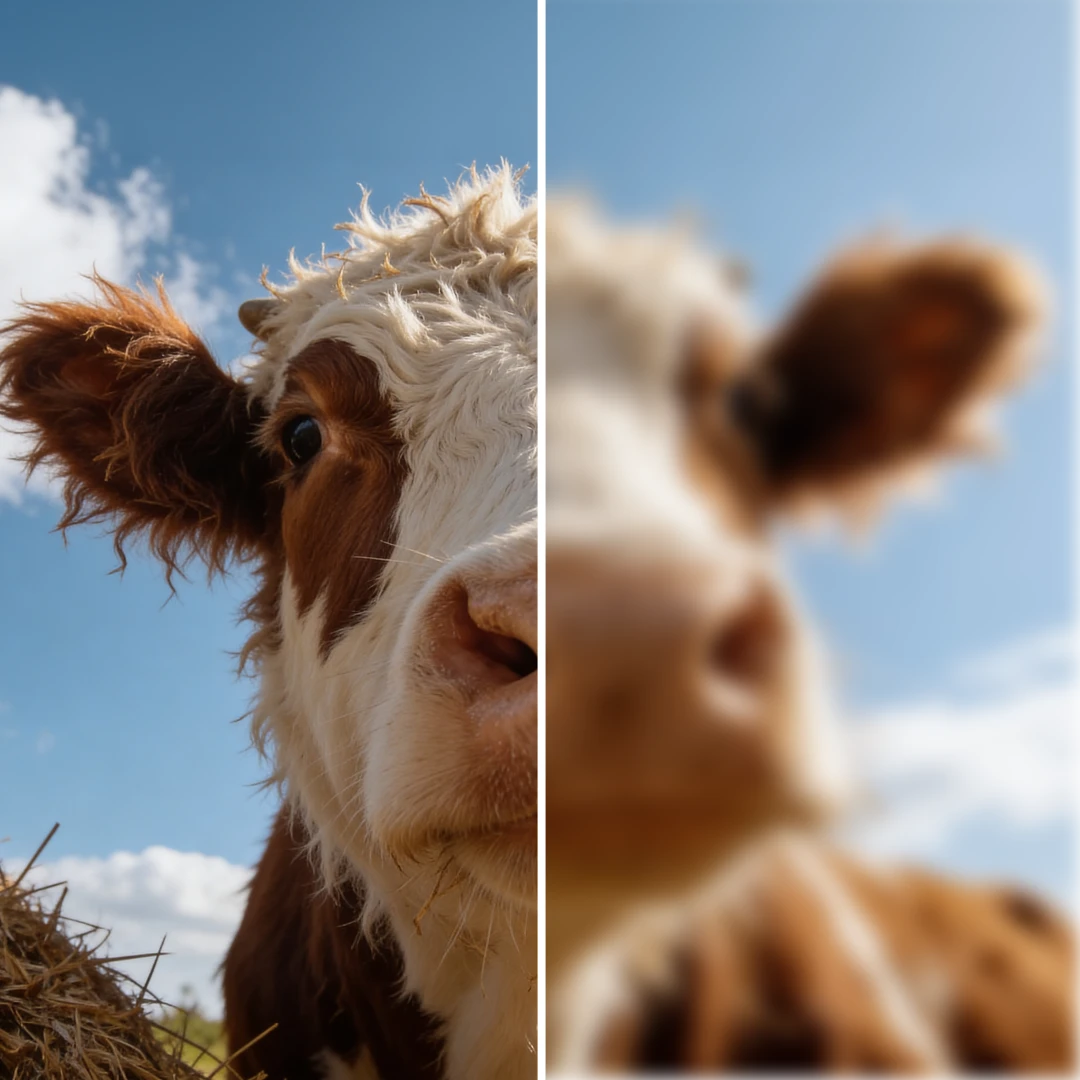
Upscale Video
Bring the details closer.
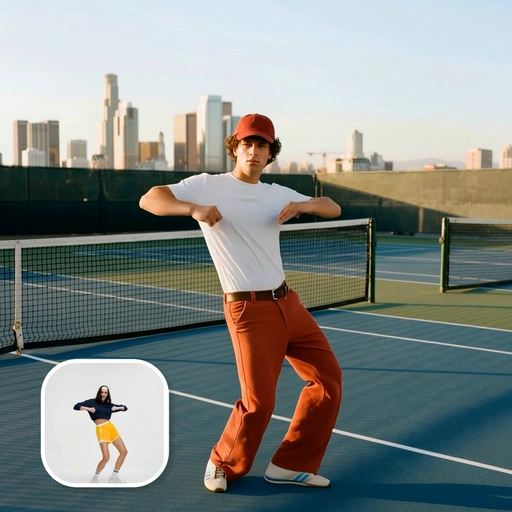
Motion Sync
Move with your reference.
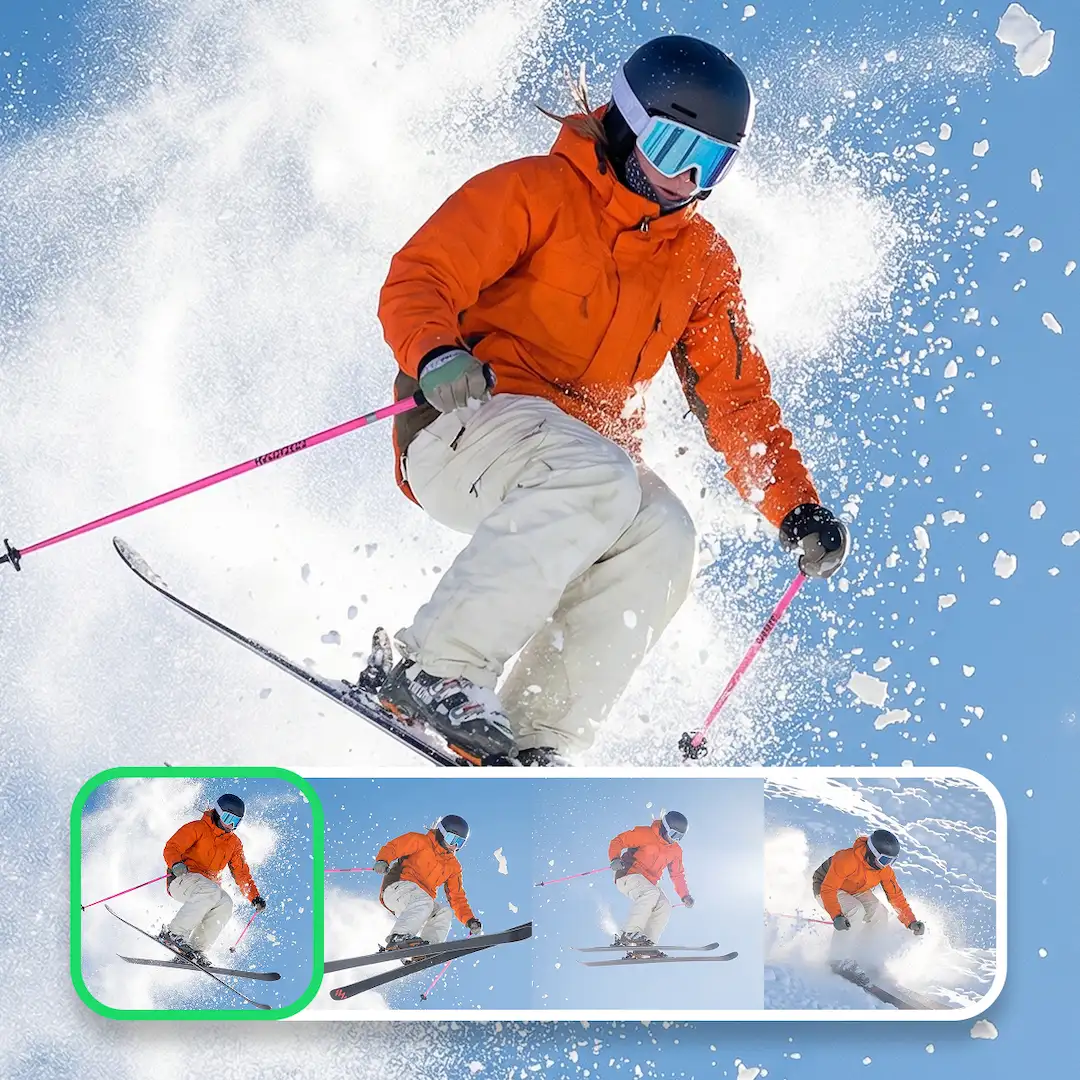
Extend Video
Keep the scene going.
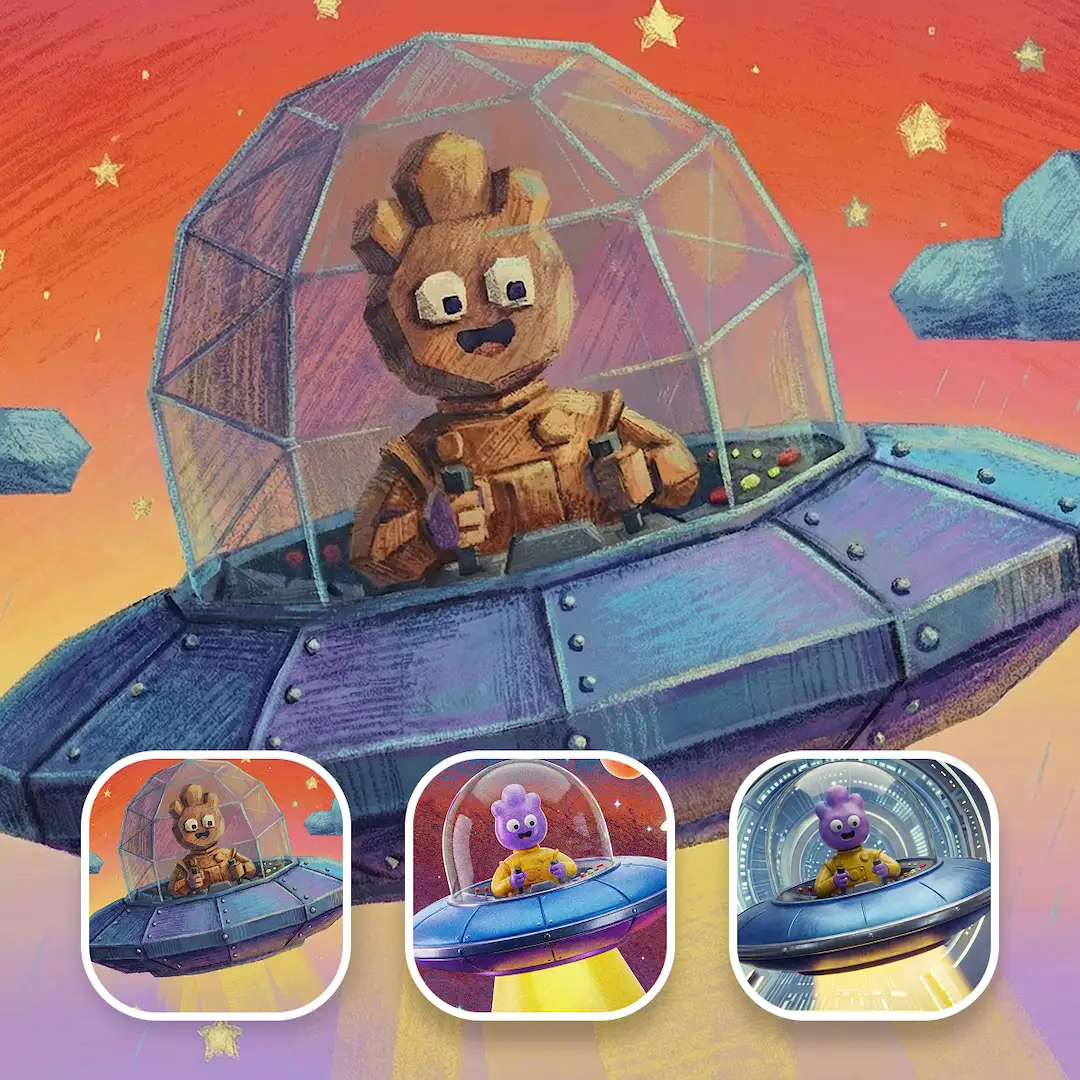
Restyle Video
Explore a different look.
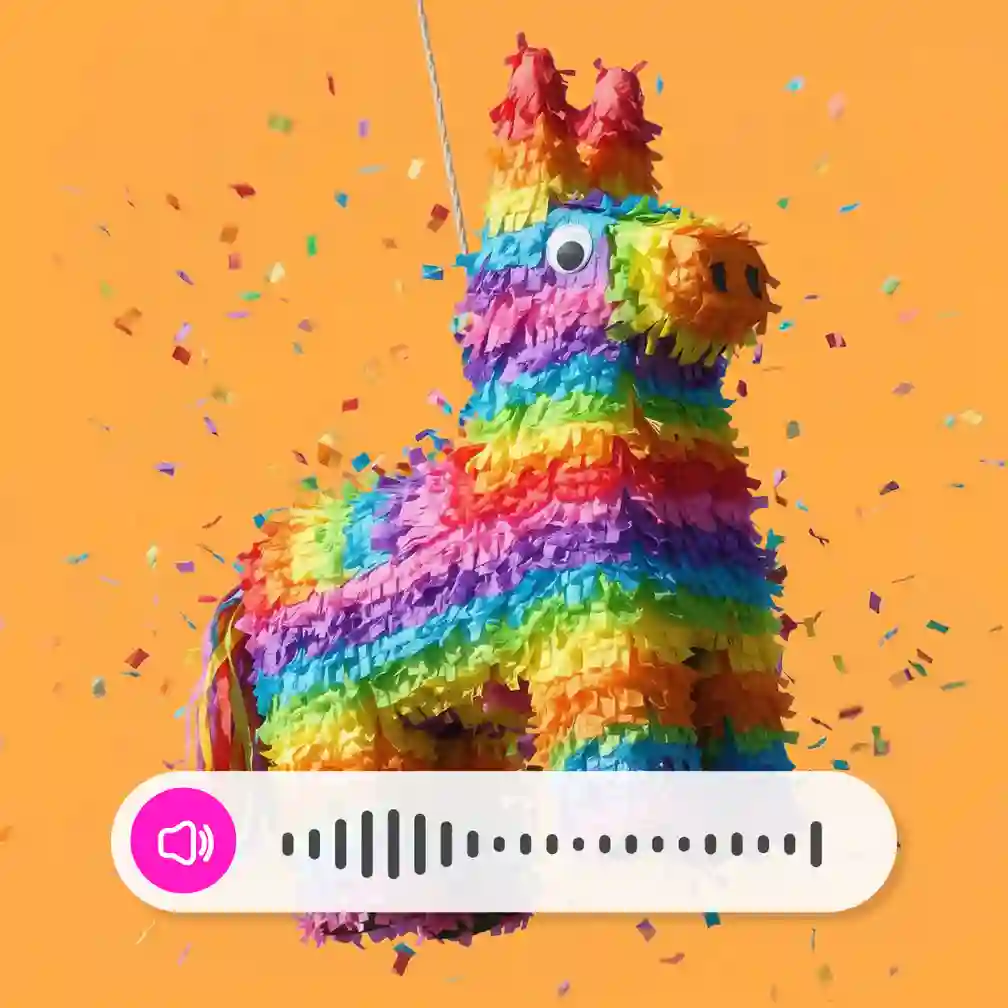
Add Sound Effect
Give your scene a sound.
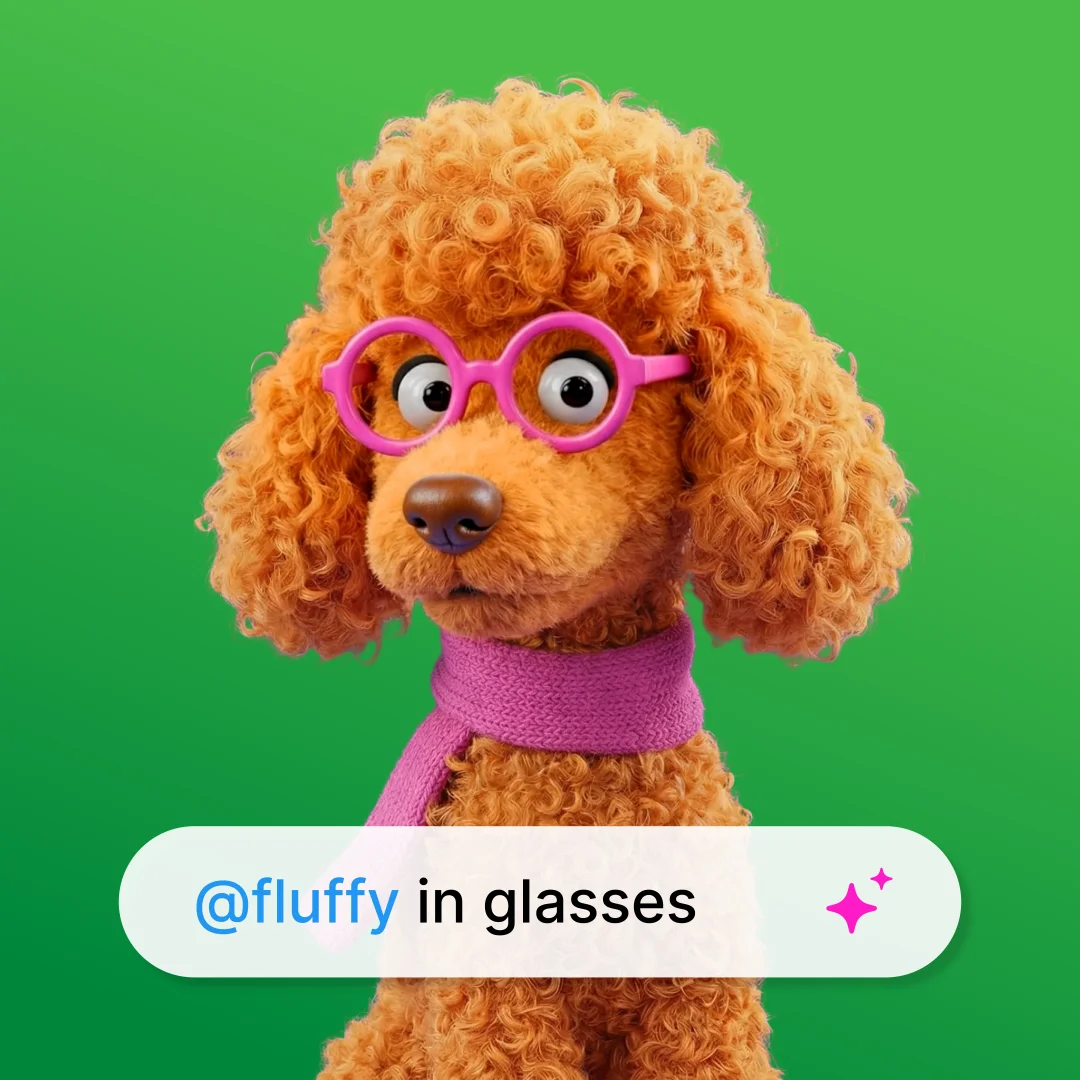
Create Image
Picture something new.
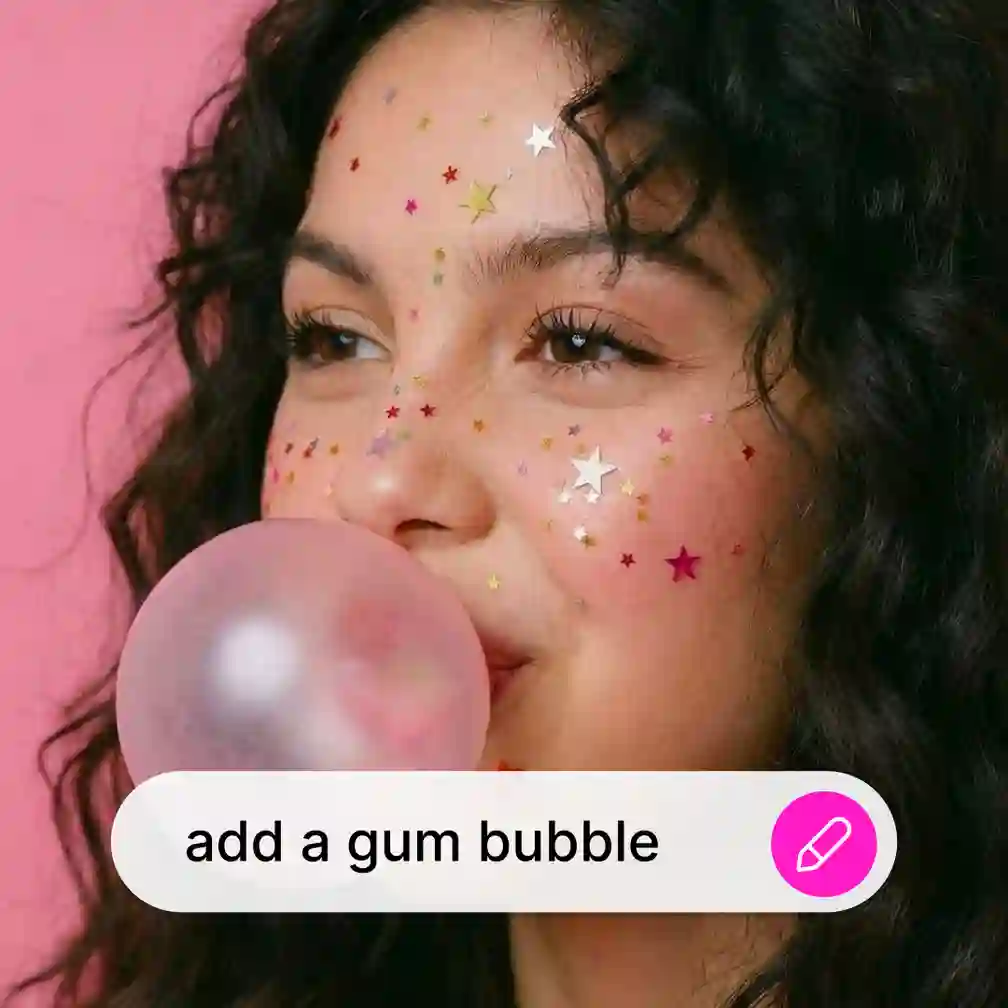
Edit Image
Make an image your own.
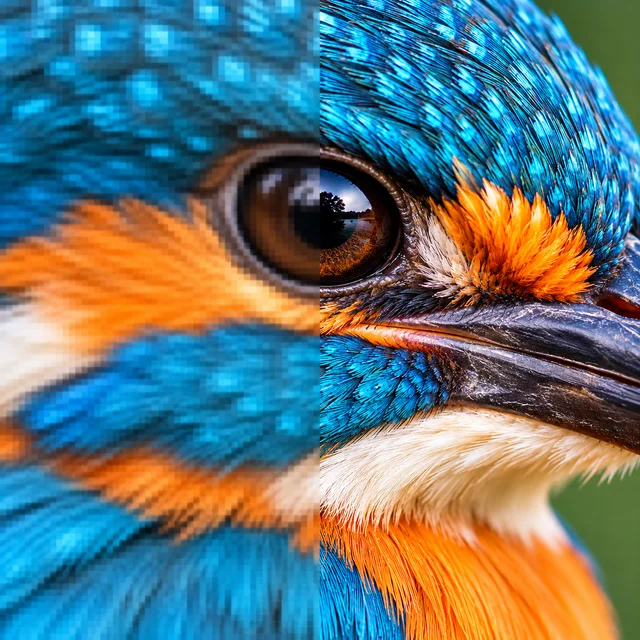
Image Upscale
Reveal finer details.
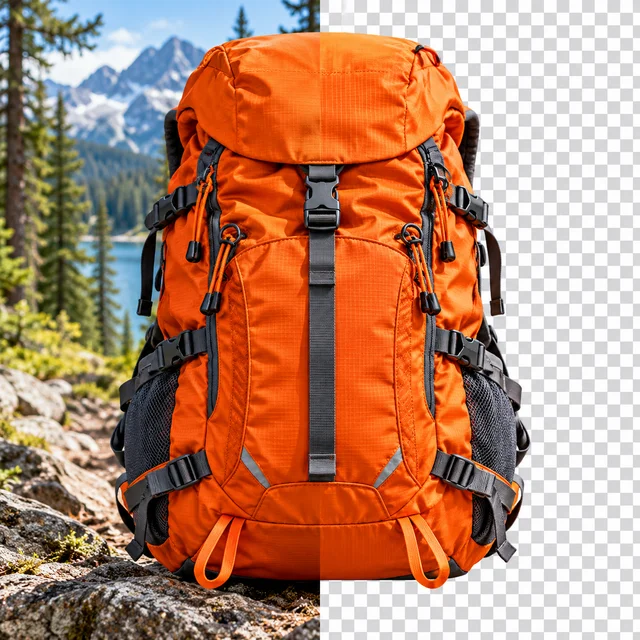
Remove Background
Let your subject stand out.
Create Music
Find your next melody.
Create Instrumental
Set the mood.
Sound Effects
Add a new dimension.
Text to Speech
Give your words a voice.
A starting point for every mood.
Explore a look, a scene, or a creative direction.
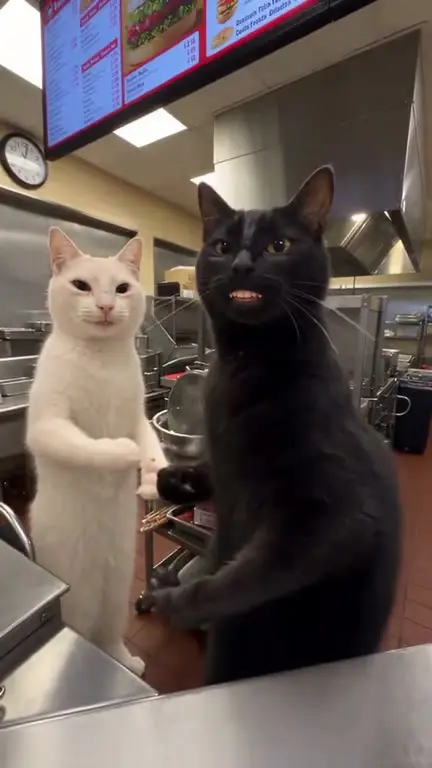
Waiting on My Fries AI Video Generator
One cat forgot the fries. The other buys time with a dance.
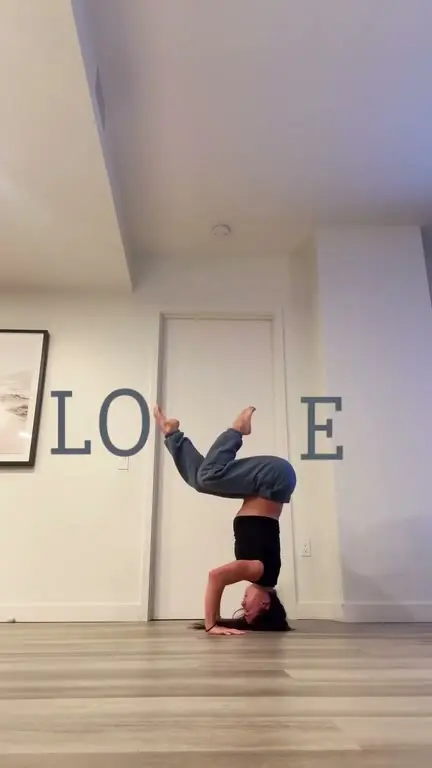
Love Handstand AI Video Generator
Bend your knees upside down and open your feet to supply the missing V in LOVE.
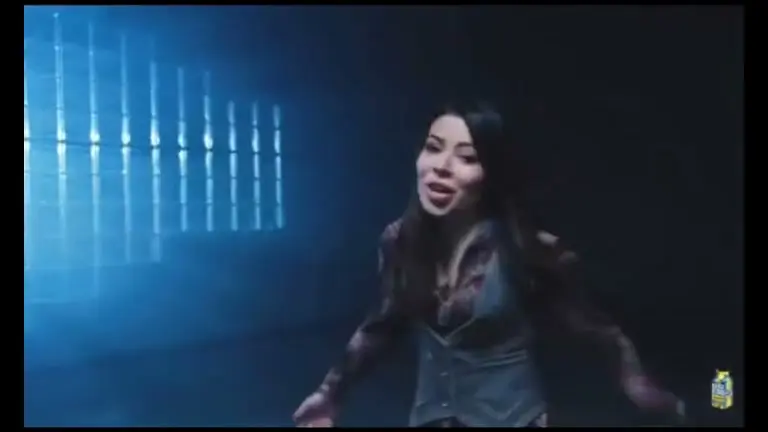
Bandit Juice WRLD AI
Take the opening verse or trade shots with a friend in the Bandit music video edit.
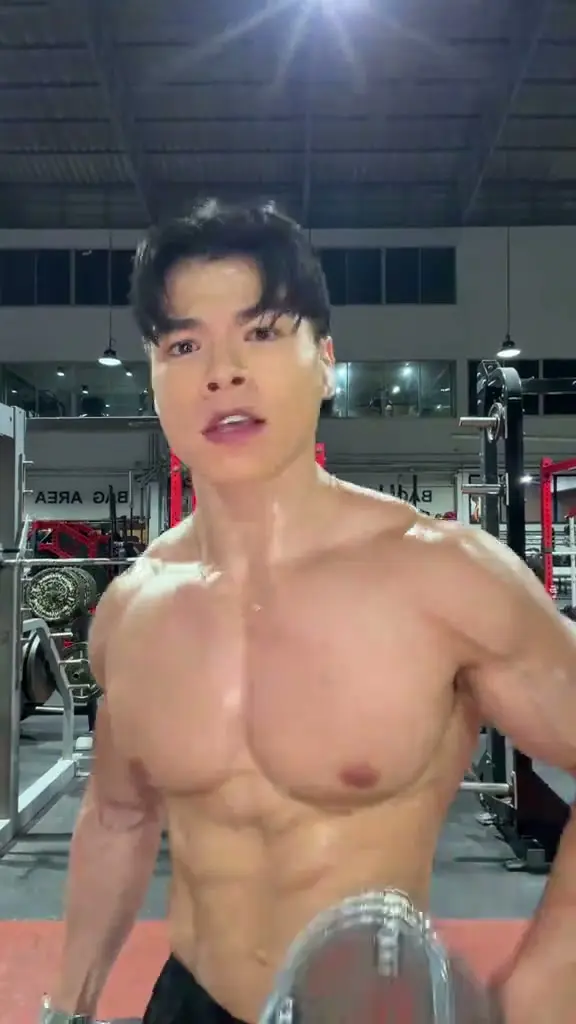
AI Huss Huss Huss
Take the dumbbells, turn on the breathy beat, then deliver the gym monologue to camera.
How it works
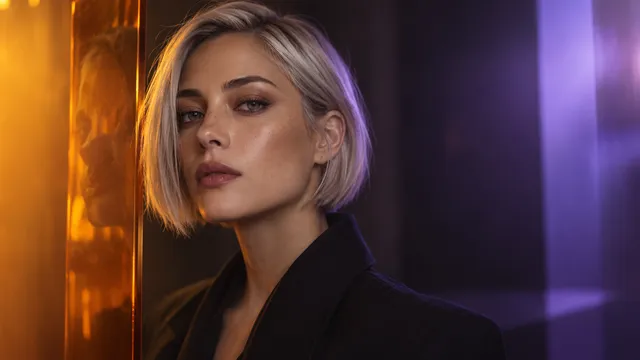
Start with an idea
Choose Video, Image or Audio. Describe your idea or upload the files your tool needs.
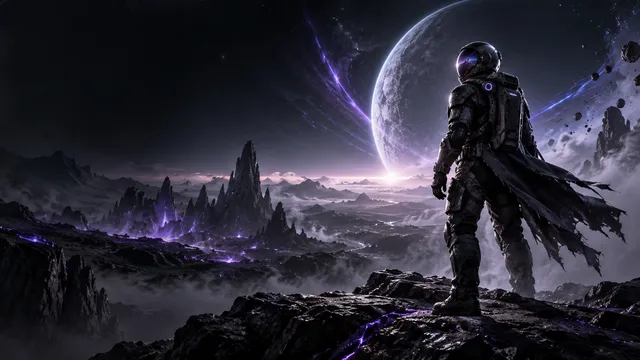
Choose your setup
Pick a tool and model, then review the available settings and credit cost.
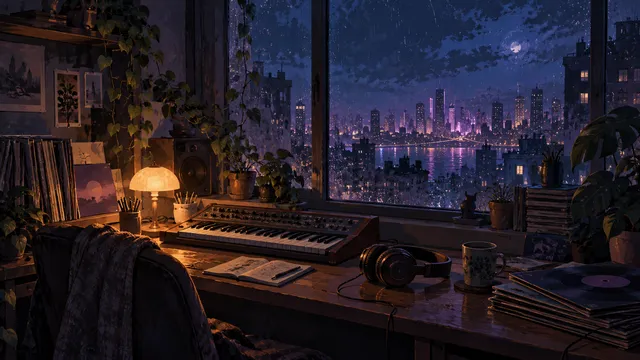
Create & download
Preview your results and download the video, image or audio you want to keep.
Find your creative match.
A few picks for image, video, and audio. Explore every model in the full library.


Frequently asked questions
What can I create with Mianvo?
Create and edit videos, generate and refine images, and make audio such as music, sound effects and speech. Choose Video, Image or Audio to explore the available tools; each model supports its own inputs and controls.
Which model and inputs should I use?
Start with the tool for your task, then choose an available model that supports your inputs and intended output. Some workflows need only a prompt; others require images, video or audio. Check the upload requirements and supported settings before submitting.
Can I get free credits?
Yes. Sign in with a verified email address to claim 5 free credits each day using the entry below the generator. That is enough to generate one basic Z-Image Turbo image with default settings. Each reward is valid for 30 days. Other models, videos and templates are charged at their quoted rates and require enough credits.
How many credits does a generation cost?
Create shows a credit quote before you submit. The amount depends on the model and supported settings, including output quantity where available. Review the quote again after changing a model, setting or input, as the cost may change.
What if generation fails or seems stuck?
Check the original task’s status before submitting again. A delay alone does not mean failure. Confirmed failed tasks return consumed credits through the task’s refund process. If confirmation or refund checks are still pending, the return may not appear immediately.
Are my creations and uploads private?
Your creations are private by default. In My Creations, you can choose which completed work to publish and whether to share available prompts and settings. Publishing a result does not make your uploaded source files public.
What does Recreate carry over?
Recreate opens an editable starting point with the saved prompt, matching model and supported settings, depending on availability. Review the new credit quote and add your own required inputs if any are missing. A new generation may produce a different result.